Checking form entries is extremely important. If you don’t check your entries, you could lose potential clients. We also recommend downloading those entries, each week, once a month, or quarterly, depending on the amount submitted, so you can confirm you have addressed all submissions.
Form Entries
Just like editing anything on your website, the first thing you will need to do is go to your website and log in.
Once you have logged into your website, you will use the dashboard on the left. Find Forms, then hover over it (or click on it) and go to Entries
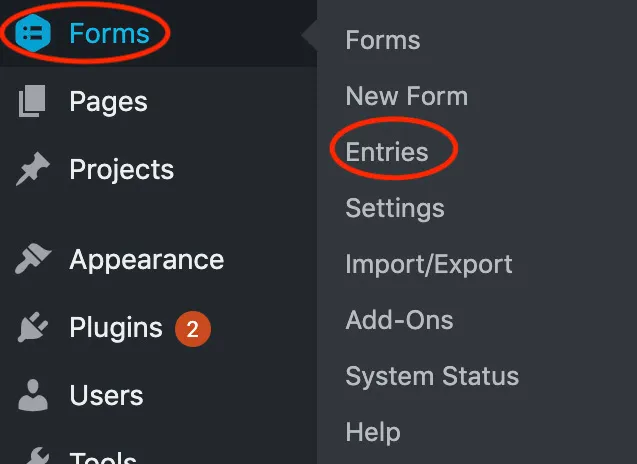
(if you clicked on it, Entries would be below the Forms).
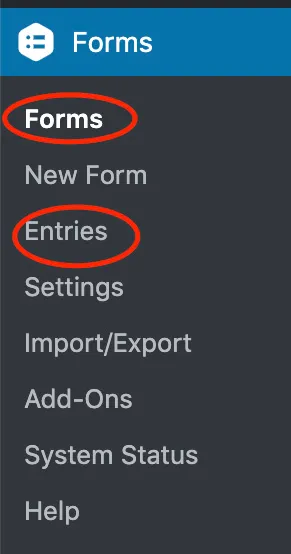
Now that you have gone to the Form Entries, you will be able to see all of the entries that have been submitted for a particular form. If you have more than one form, you can decide which form’s entries you want to see by choosing the form.

Once you have chosen the form you want to look at, you can see all the entries, how many are unread, starred, and in the trash.

Exporting a Form
When exporting, you will still go to Forms on the dashboard. You also have the option to hover or click. If you hover, Import/Export will be off to the side.

If you click on Forms, Import/Export will be underneath.

Now that you have clicked on Import/Export, you will be able to choose if you want to export form entries or export forms.
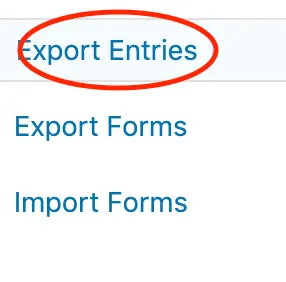
If you decide to export entries, you will choose which form you want to export the entries from. Once you have done this, you can select specific entry fields you wish to export as well as a date range. The date range comes in handy if you know a specific time frame you need to export.
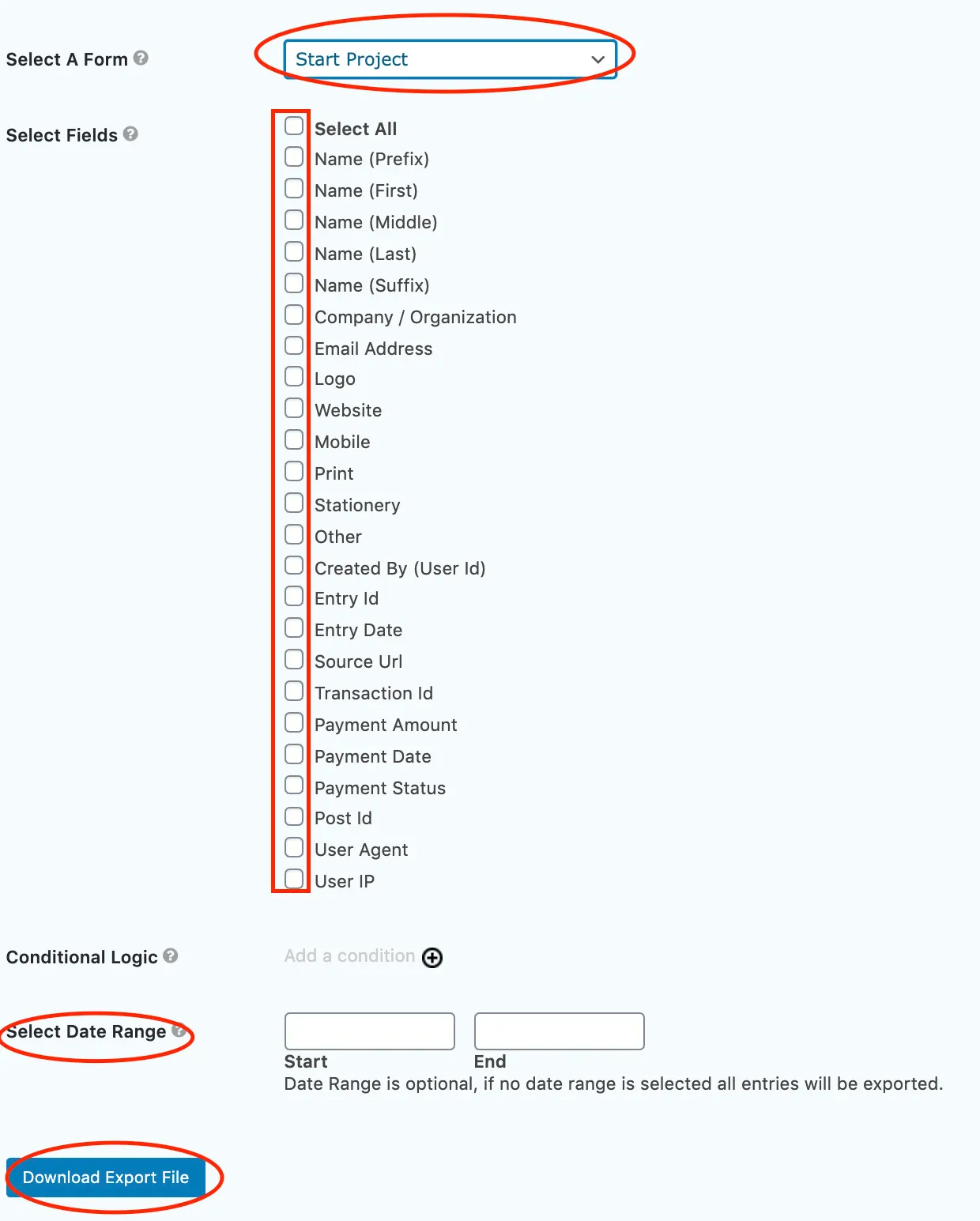
Once you have chosen the form, entry fields, and date range you want to export, click the blue Download Export Files to complete your export.
If you wish to export a whole form, you will select export forms instead of export entries.
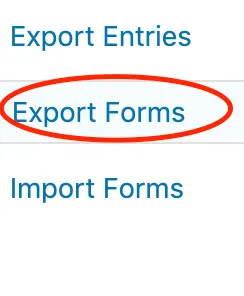
You will choose which forms you are wanting to export, or Select All to export all of them. Once you have chosen your forms, you will click the blue Download Export Files button to complete the export.
Remembering to check/export form entries can be a task that gets pushed to the back burner, but it is crucial to regularly do both of them. If you have any questions about form entries, exports, or any other Oklahoma web design or Dallas web design questions, please reach out.