We understand that learning a new CMS can be challenging, so we are here to help! If you want to add/embed videos onto your EE site, it is best to upload videos to Youtube or Vimeo first. This blog will go step by step to make it a little easier for you, and you could possibly add a new video to your website as you follow along.
Adding/Embedding Videos From Youtube or Vimeo.
The steps to embedding videos onto your EE website from Youtube or Vimeo are extremely similar. So, if you can do it from one site, you can do it from the other. You will need to be sure to copy the iFrame code. We will walk you through how to do this if you don’t know how already, so there is no need to stress.
Step 1: Login to Your EE Website and Go to The Correct Page
The first thing you will need to do when adding videos is to log in to your website. Once you are logged in, you will need to go to the page where you are wanting to add a video. After you get to that page, you will need to go to the single content or one of your columns… it all depends on where you want the video to live on that page.
Step 2: Find the Embed Media Button on Your EE Website
This button is along the top of the single media or the column, next to where you would add an image. I call this button the “film strip”.

Once you have clicked on the button, this screen will appear:
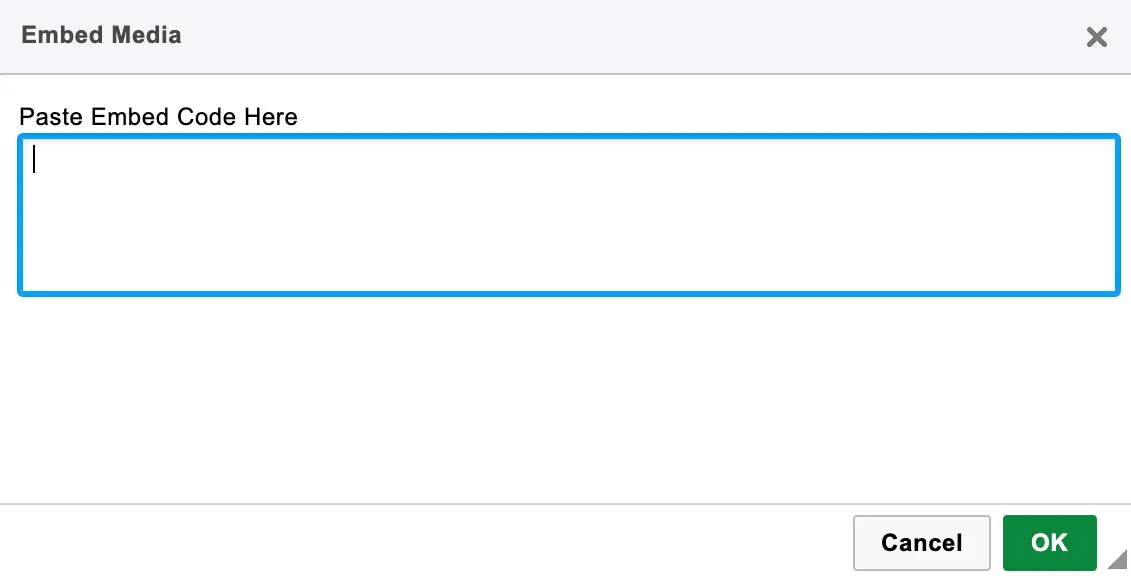
For now, you will leave this box just like this.
Step 3: Go to Youtube or Vimeo
Now, you will go to Youtube or Vimeo, wherever your video is uploaded. Once you are there, you will find the video you are wanting to upload to your EE website.
Step 4: Find The Share Option
After you have found the video, you will need to find the “Share” option. It is on the right hand side under the video.
Youtube:
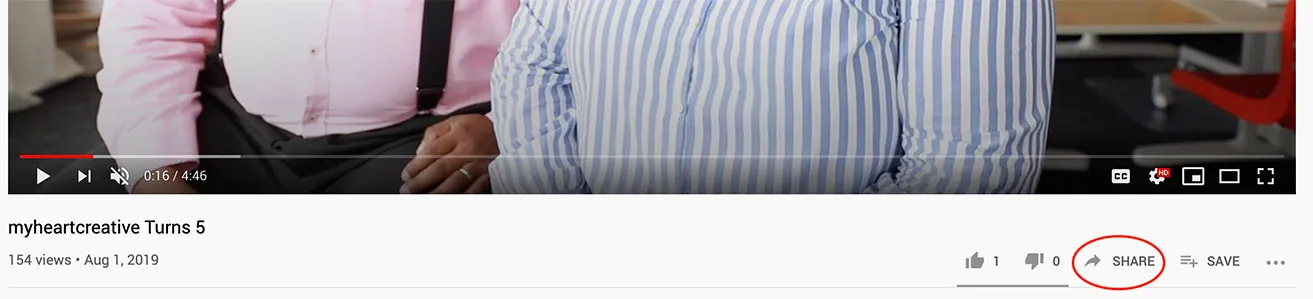
Vimeo:

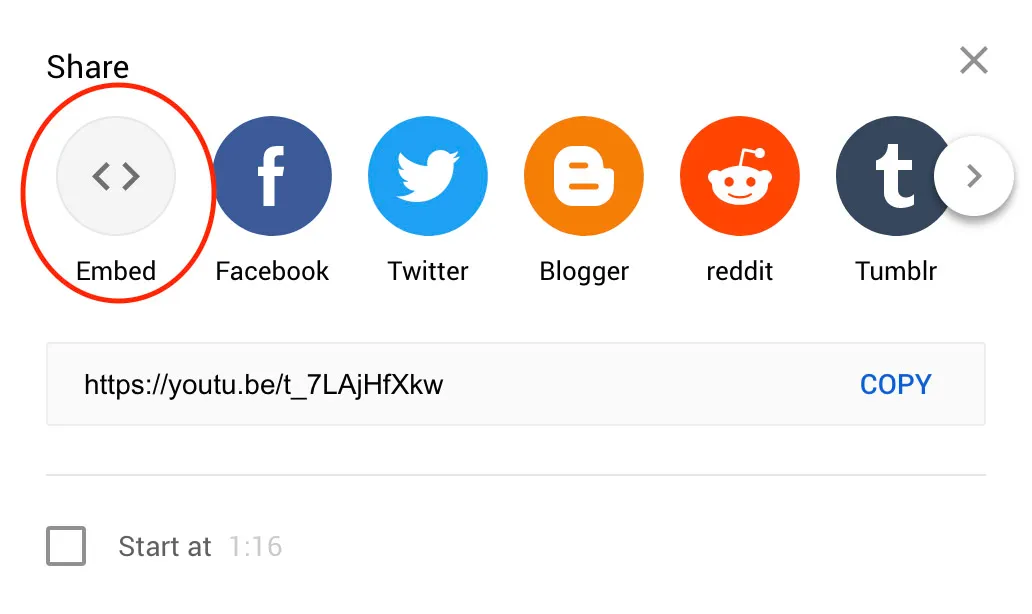
Now that you have found the “Share” option, you will click that. If you are on Youtube, there will be one extra step than on Vimeo. So for Youtube users, once you hit “Share” you will choose Embed.
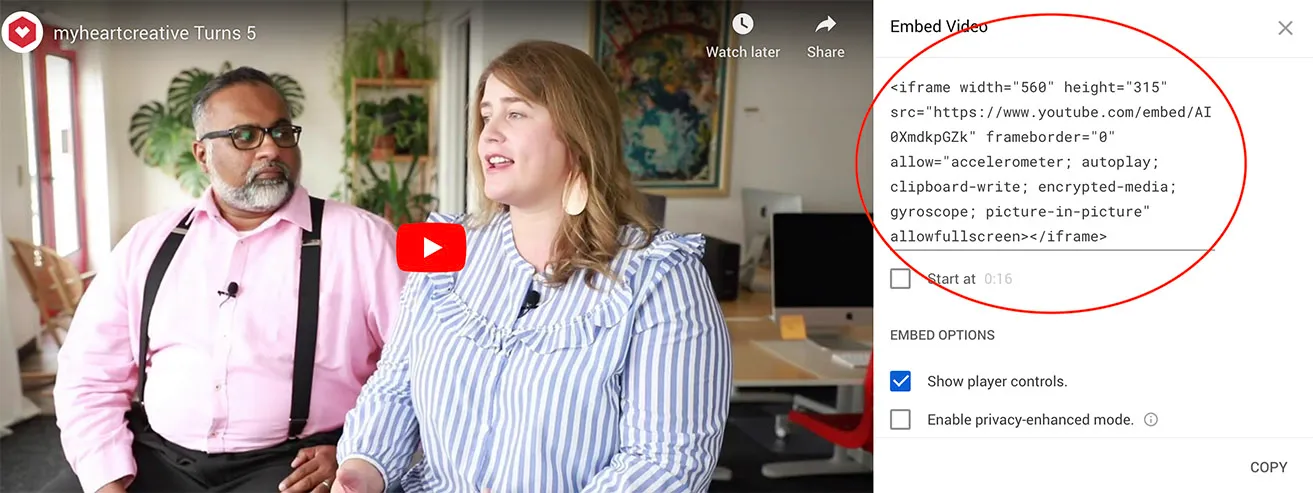
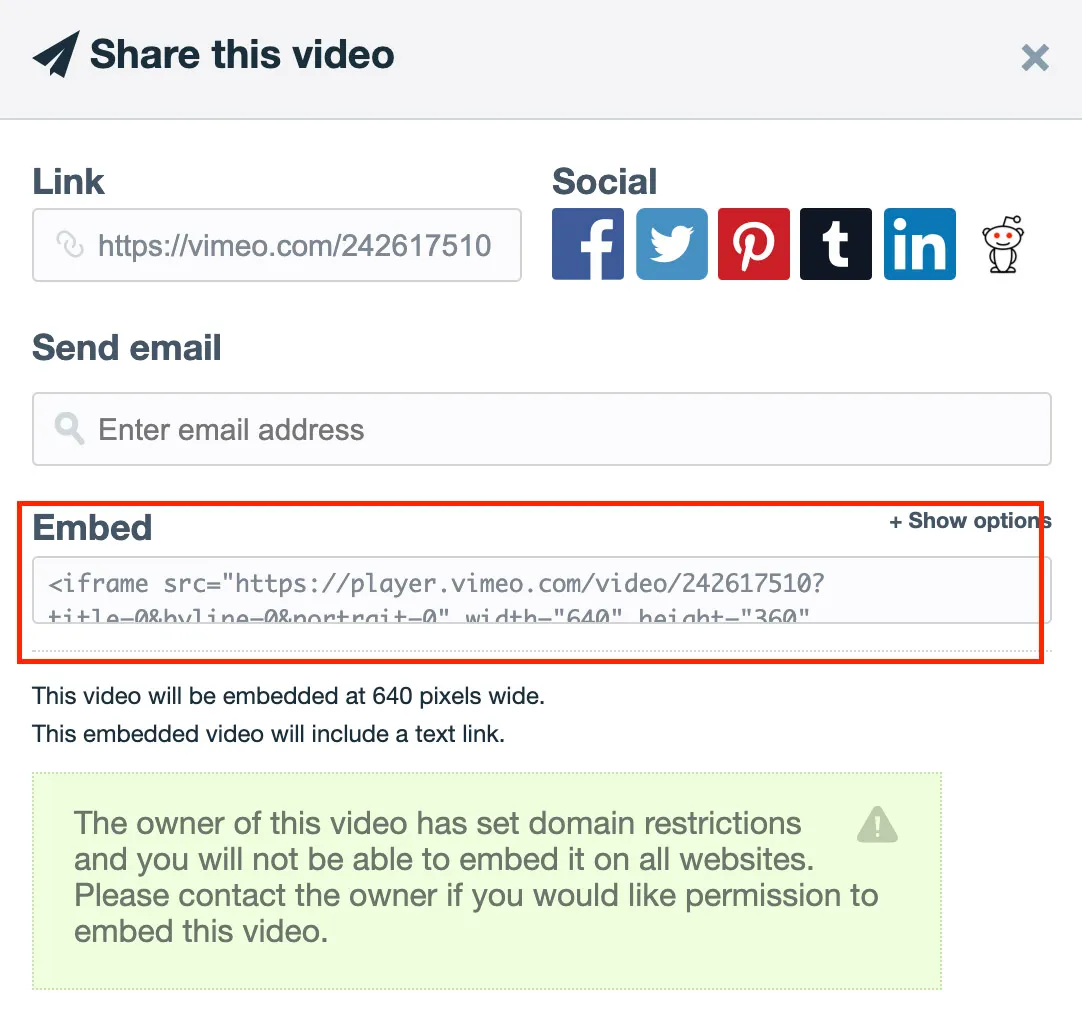
Step 5: Copy The iFrame
On Vimeo, you have just clicked Share, and on Youtube you have clicked Share and then Embed. This is where you will copy the iFrame.
Youtube:
Vimeo:
Step 6: Go Back to Your Website and Paste iFrame
Once you have copied the iframe, you will go back to your website in order to paste it into that box that had popped up after you clicked on the Embed Media (film strip) button.
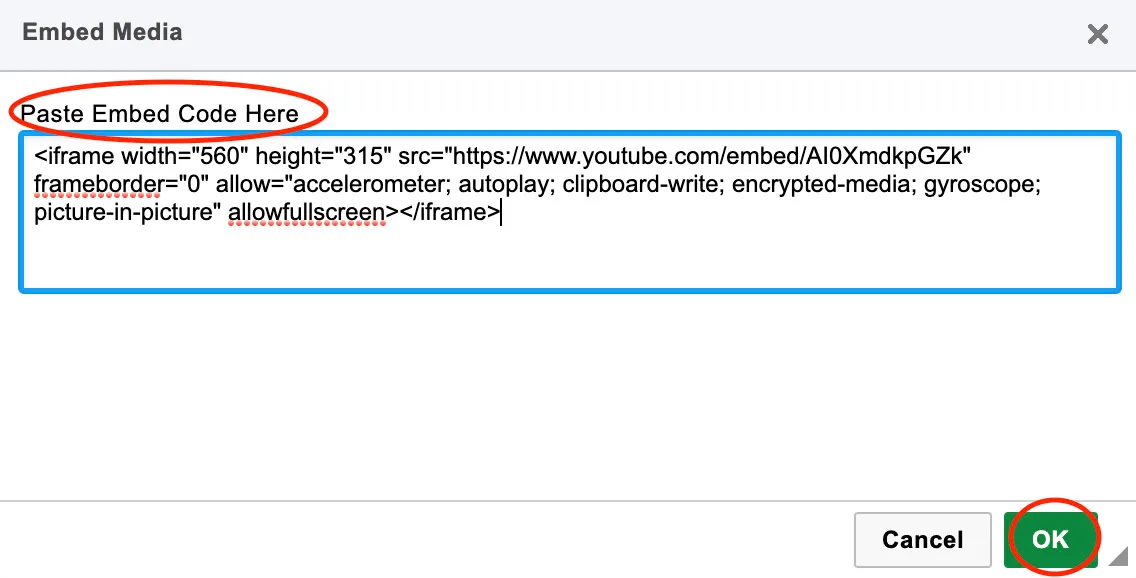
Once you have pasted that iFrame into the Embed Media box, you will click OK.
Now your video is added/embedded onto your EE website. If you have any questions about adding a video or website design in Oklahoma, feel free to contact us anytime.