We know change can be difficult, especially when moving from one CMS to another. At myheartcreative, our goal is to help you feel as comfortable as possible when it comes to your website, so we created a guide on how to create a new page within your EE site.
These steps will be the same no matter what section you are needing to create a page in (blogs will work a little differently though).
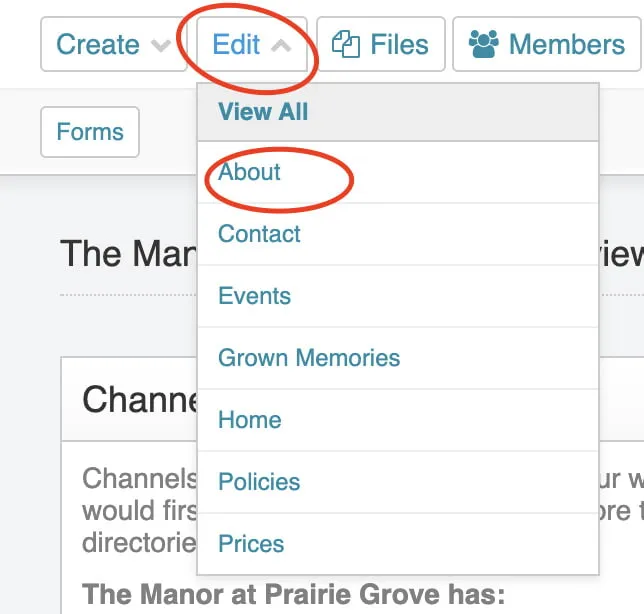
- Your first step would be to click “Edit” in the top left corner of your screen.
- After clicking on “Edit,” all the pages in your navigation will appear in a drop down menu.
- From here, you will choose where you are wanting your new page to “live”.
If you are creating a “Team” page, then you would most likely have that page live under “About”.
- After clicking on “About,” a new screen will appear.
- This new screen shows all of the pages that “live” under the “About” section.
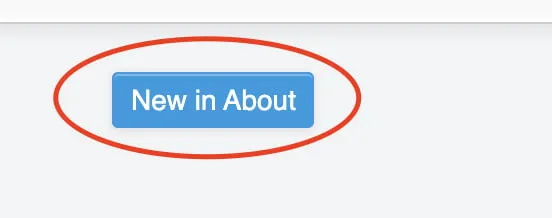
- Next, you will need to click on the blue “New in About” button on the right side.
- After clicking on the “New in About” button, another screen will appear. This is where you will type in your title that you want the page to have.
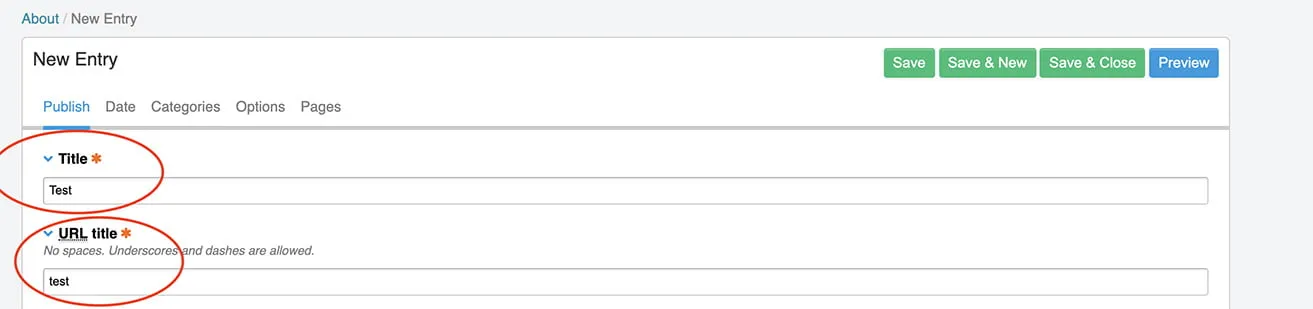
- You will also want to double check that the “URL title” matches your page title (it will fill in automatically, but if you change the title of your page later on you will need to change the “URL title” to be consistent with your page title).
- From there, you will click the lower level “Structure” tab.
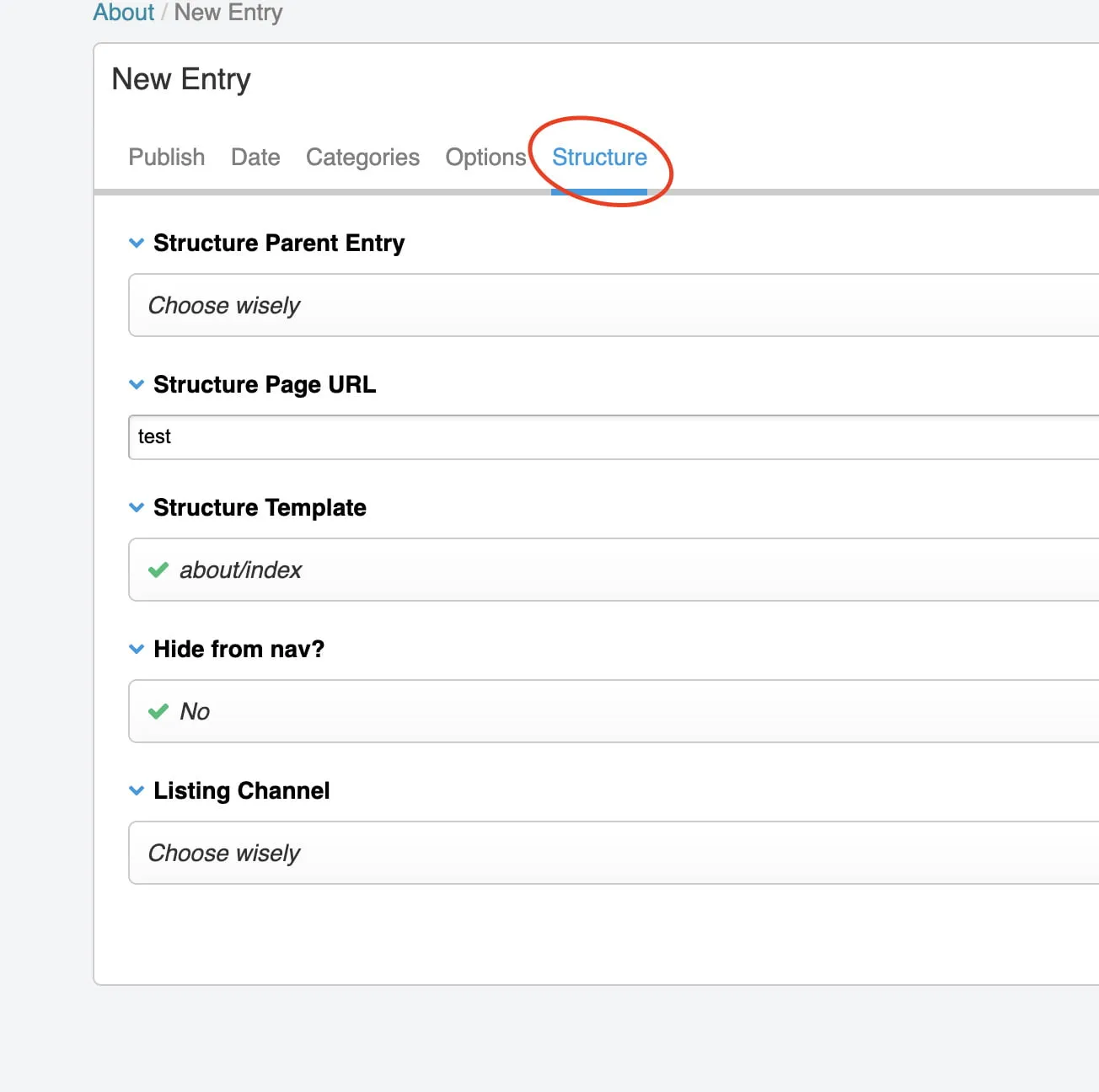
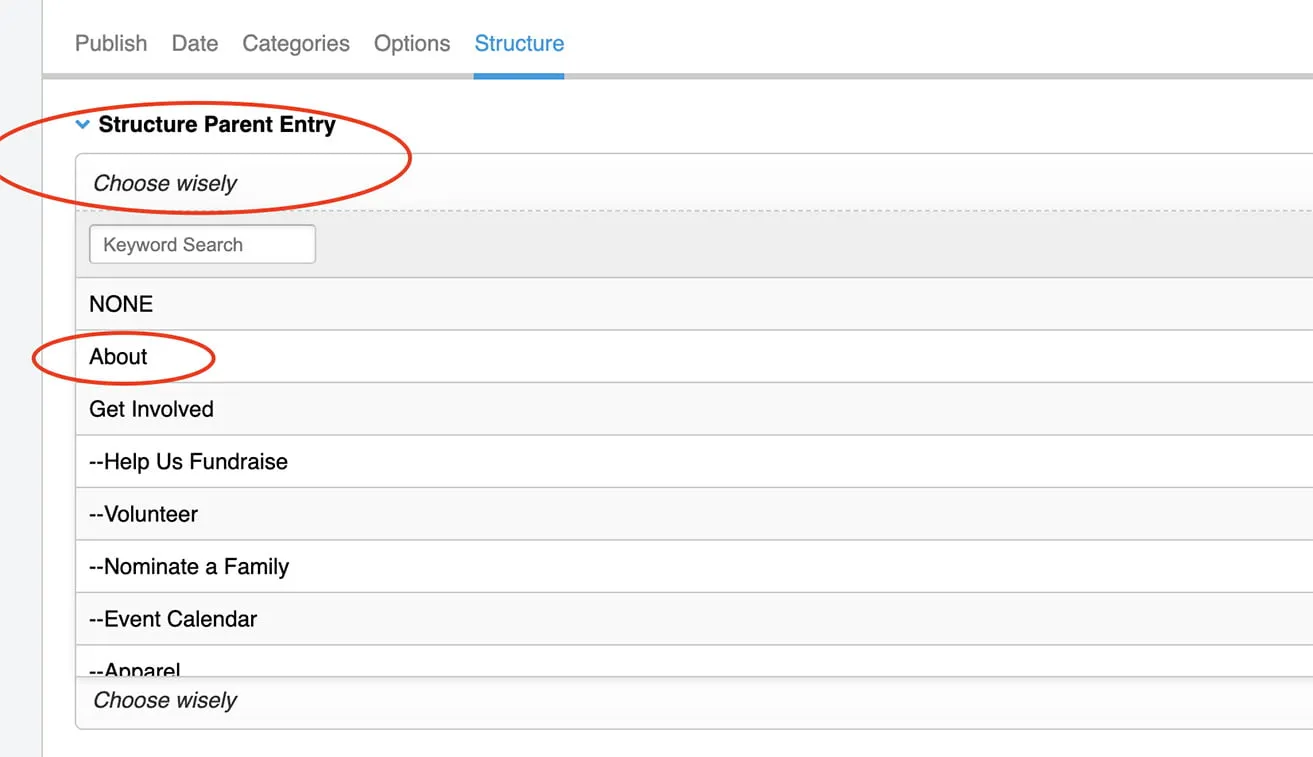
- After going to the “Structure” tab, you will need to choose your “Structure Parent Entry”. Since we created this page under “About,” we are going to choose the “About” entry.
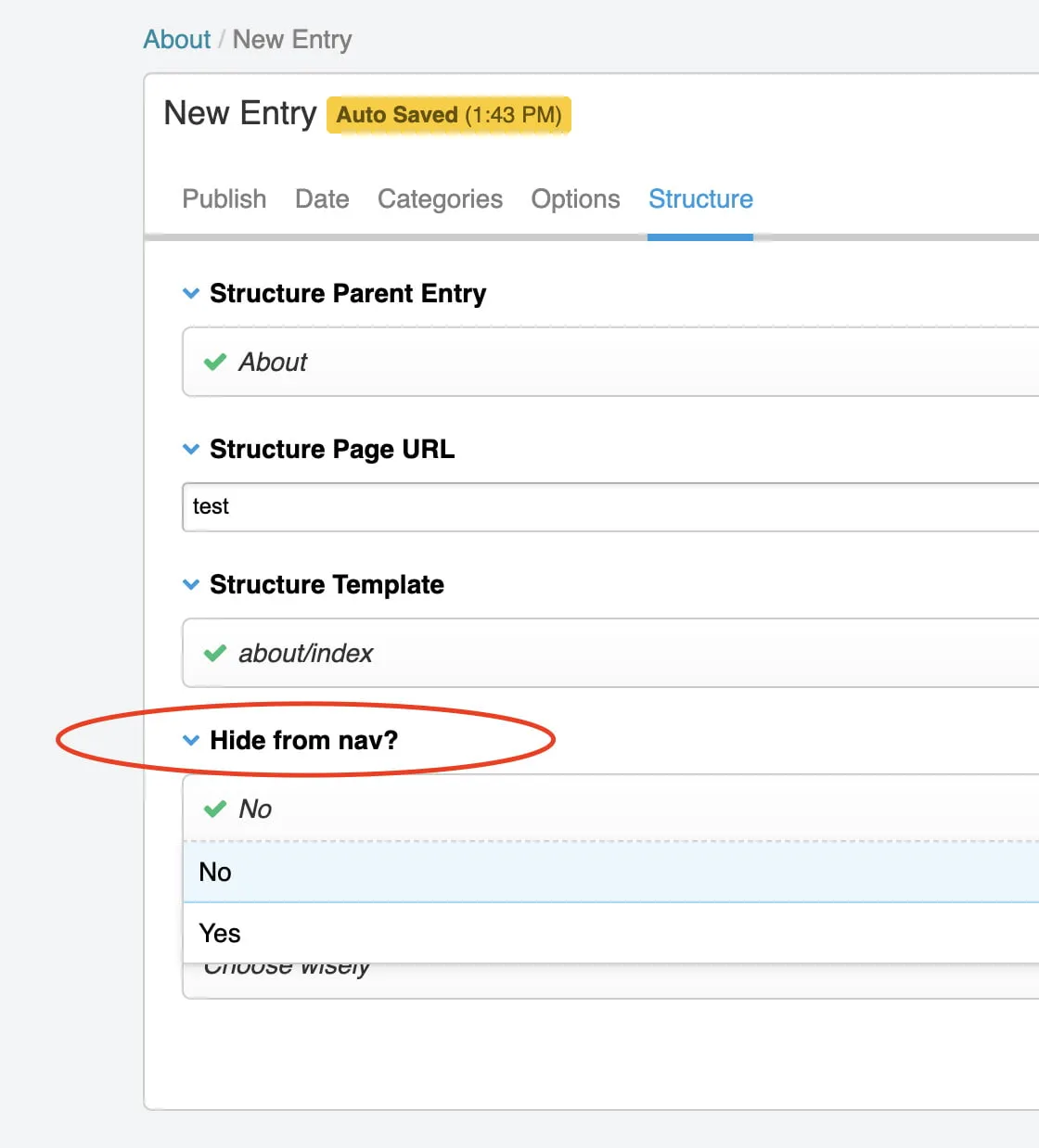
- Now, you will choose whether or not you want to hide it from your navigation. If you do not want to hide it from your navigation you can just leave it as it is with “no” selected, but if you do not want to see it in your navigation, you will change it to “yes”.
- While working on a new page, we do recommend hiding it from your navigation until you are done editing that page.
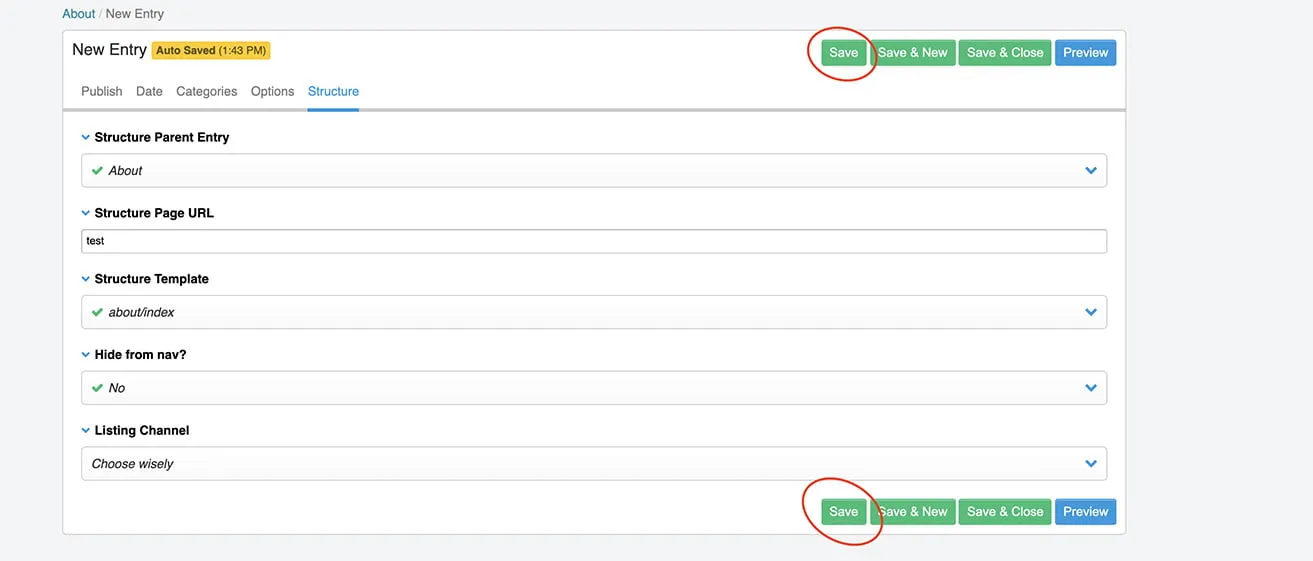
- The last step you will need to do when creating a new page is to hit “Save”. You can hit it at the top or the bottom of your page.
- If you want to rearrange where that page shows up in your drop down navigation you can change that in the upper level “Structure” tab.
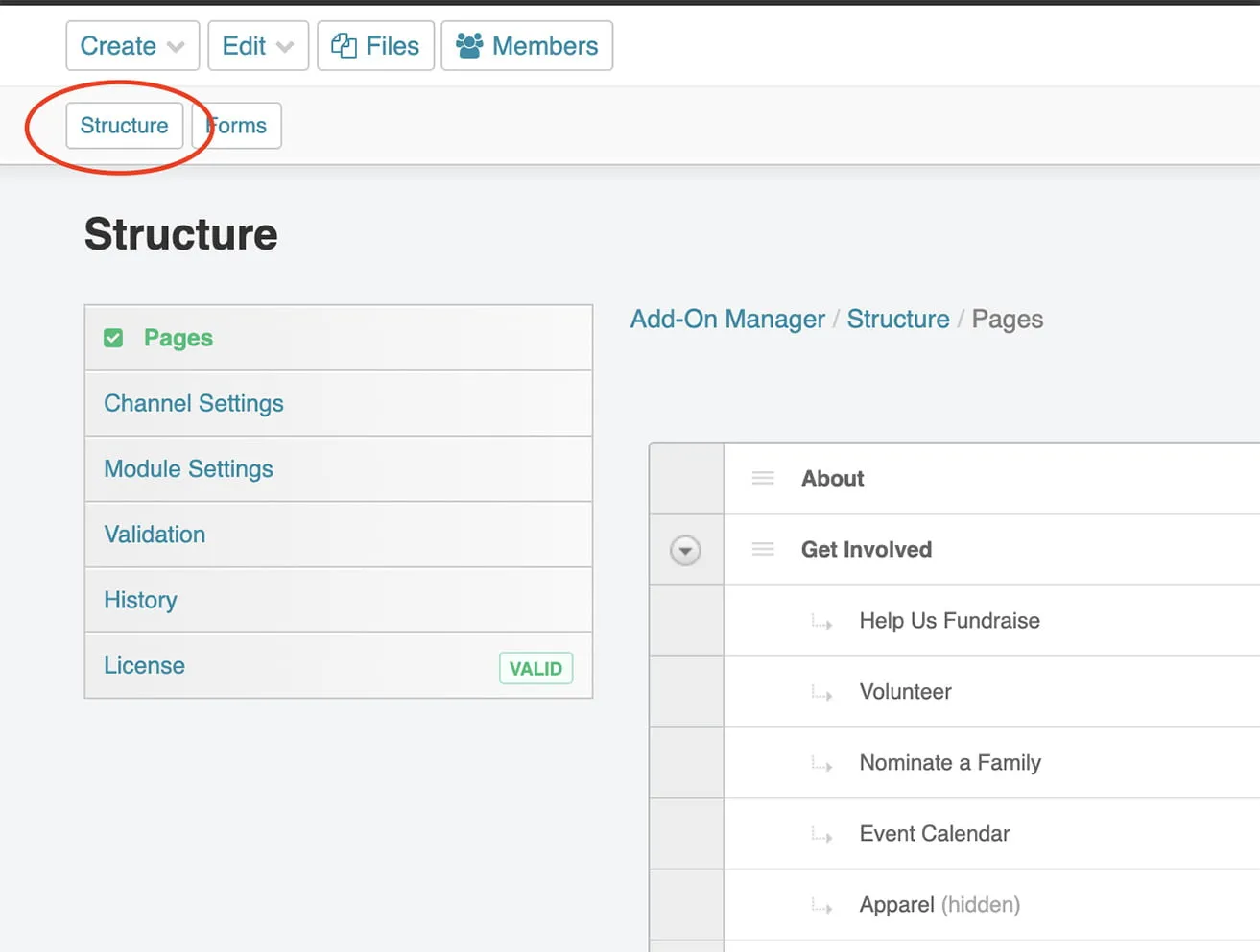
- From there, you will find the page you want to move.
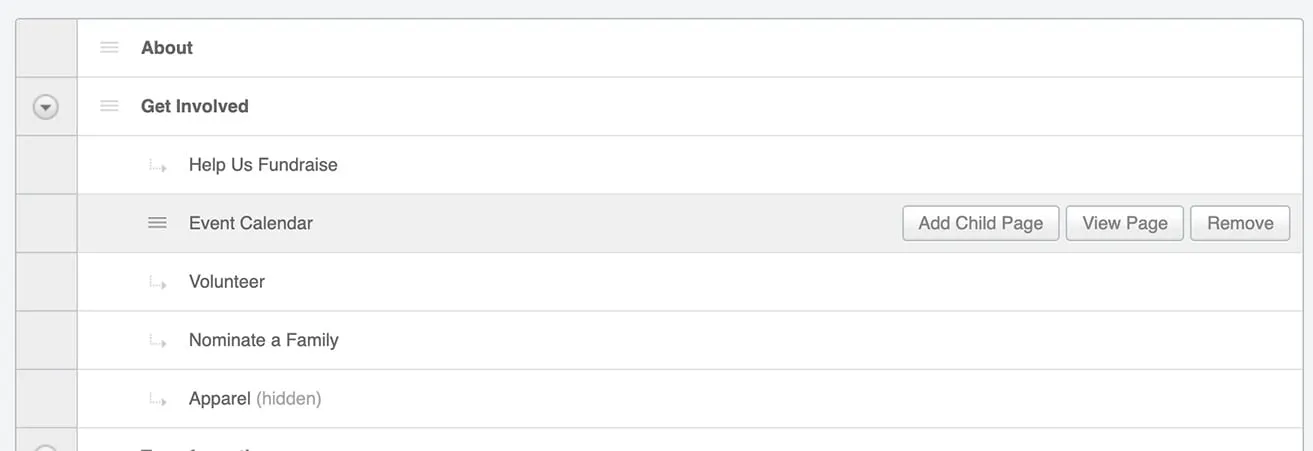
- For now we will just say you want to move “Event Calendar” above “Volunteer”.
- You will hover over the arrow on the right side of “Event Calendar”. The arrow beside that page will turn into lines and your cursor will look like an arrow.
- Once your cursor looks like that strange arrow, you will be able to drag and drop that page wherever you want. (Now “Event Calendar” is above “Volunteer”.
This guide will help you create a new page until you get used to the hang of your new CMS. If you have any questions about how to create a new page or website design in Oklahoma City, please contact myheartcreative.