Now that you have moved to your new CMS, Elemental Editor, you will need to put your training to good use. We want to make sure you know exactly what you need to do when creating a new page within your EE site.
When creating a new page in EE, use this step-by-step guide on how to create a new page.
- The first step is to hit “Edit” in the top left corner of your screen.
- Once you have done that, all of the pages within your navigation will appear.
- You will then choose where you want your new page to “live”.
If you create a “Team” page, you would likely want that page to live under “About”.
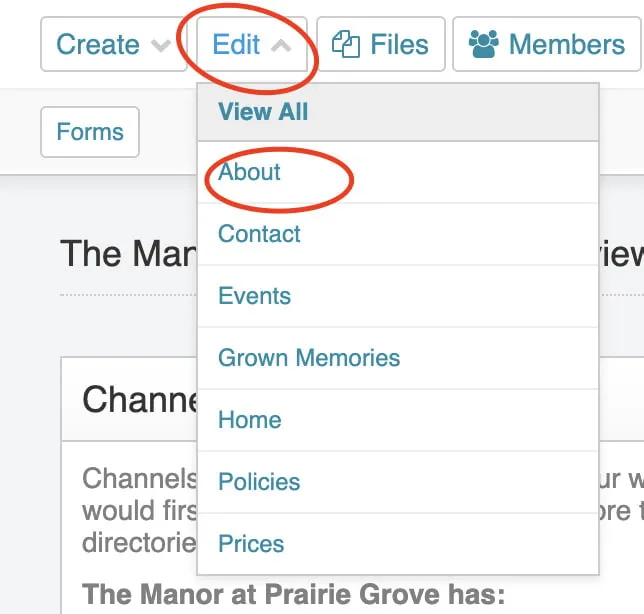
- After you click on “About,” a new screen will appear.
- Here is where you can see all of the different pages that “live” under your “About” section.
- To get your new page started, you will need to click the blue “New in About” button on the right side of your screen.
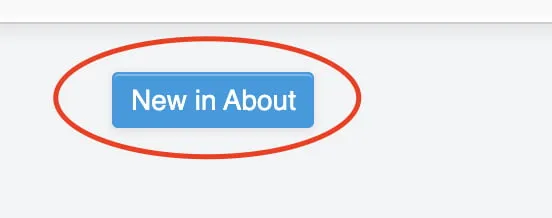
- After hitting the “New in About” button, this screen will appear. This is where you will type in your page title.
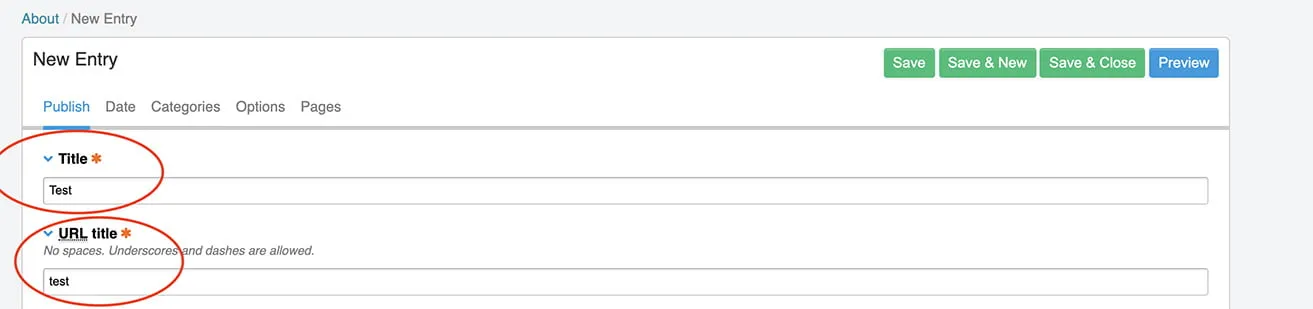
- You should double check that the “URL title” matches your page title. It will fill in automatically, but if you change the title of your page, you will need to change the “URL title”. If you want to be consistent with your page title.
- The next step is to copy your “URL title”.
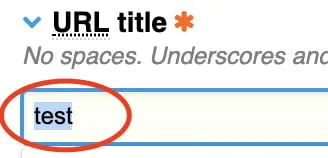
- Once you have that copied, you will go to the “Pages” tab, type a backslash ( / ) in the “Pages URI” section and paste in what you copied.
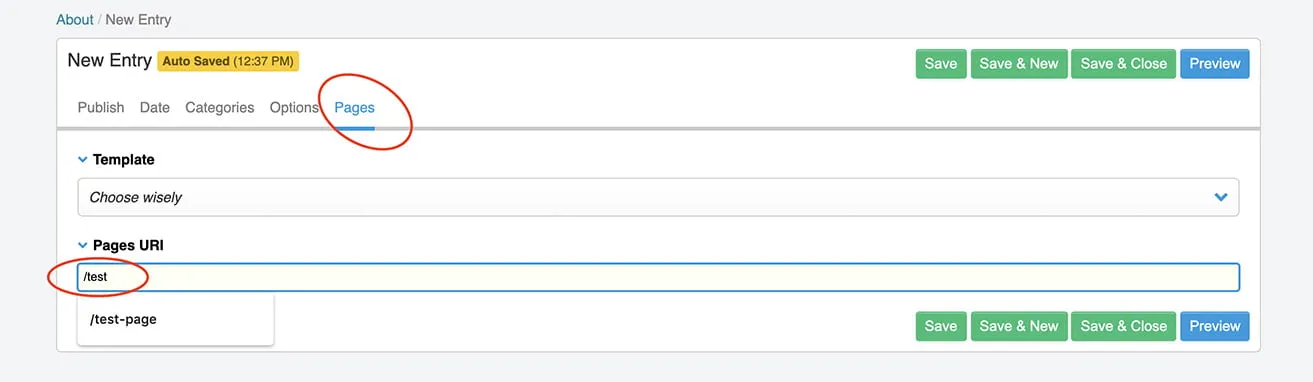
- After you have that copied and pasted in the correct section, you will stay in the “Pages” tab.
- Now, you will choose your “Template”.
- Once you hit where it says “Choose Wisely,” a drop down menu will appear.

- Since we made this page under “About,” we are going to choose the “about index”.
This goes for any page you create. If you make a page under “Services” you would choose the “services index”. - The last step when creating a page is to save it. There is a “Save” button on the top or on the bottom.
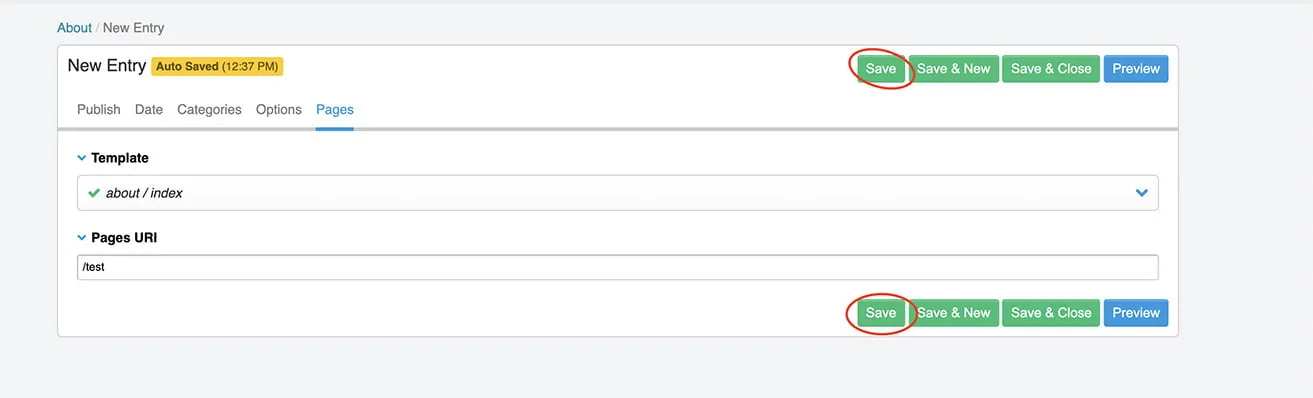
- Once you have a page created. it can be linked anywhere on your site. If you want that page to show up in your navigation or drop down menu, just let us know where you would like it to “live,” and we will get that added for you.
We hope you find this a helpful reminder in creating a new page within your EE site. If you have any other questions, feel free to reach out and let myheartreative know. We are ready to help with any of your OKC web design needs.